
When Claude Code finishes a plan, it asks what you want to do with it. If you don’t like it, you type your reply into the same box you typed the request into.
That’s fine for one note. For a 40-line plan with four things wrong, it falls apart. My replies would start “In step 3, the shadow mode part,” then “and the open question at the end,” and halfway through I’d lose track of which step I meant. If I couldn’t keep it straight, there was no reason Claude would.
The problem wasn’t Claude. My feedback had no anchor. So now I leave every note beside the exact line it’s about, and send them all back at once.
TLDR
For one quick change, choose “No, keep planning” and type it, or press Ctrl+G to edit the plan in your text editor. For anything more, open the plan in dotPen, select each line you want changed and press C to leave a comment, then click Send to agent. dotPen turns your comments into one prompt that quotes every line. Connect its MCP bridge and Claude Code can read the comments itself.
The ways Claude Code gives you
Claude Code’s plan mode docs list what you can do when a plan is ready:
- Approve it and let Claude make the edits.
- Approve it and review each edit yourself.
- Choose “No, keep planning”, stay in plan mode, and tell Claude what to change.
There’s also a shortcut most people miss. Press Ctrl+G and the plan opens in your default text editor, so you can edit it directly before Claude goes on.
Both are good for small changes. I still use “No, keep planning” for a single note. They get hard when you have several notes about different parts of the plan, because the context for each one is the line it’s about, and a reply box doesn’t show lines.
Leave a comment beside each line
To comment on the plan, it has to be somewhere dotPen can see it. If Claude Code still saves plans to its hidden folder, I explained how to move them into your project in how to read Claude Code plans on a Mac.
Then open the plan in dotPen, the Markdown reader for Mac we build for reviewing what agents write:
- Select the text you want to comment on. A small bar appears with Comment, Copy and Copy as prompt.
- Click Comment, or press C.
- Type your note and save it.
The comment sits in the margin beside the line, with a number on the text it points at.
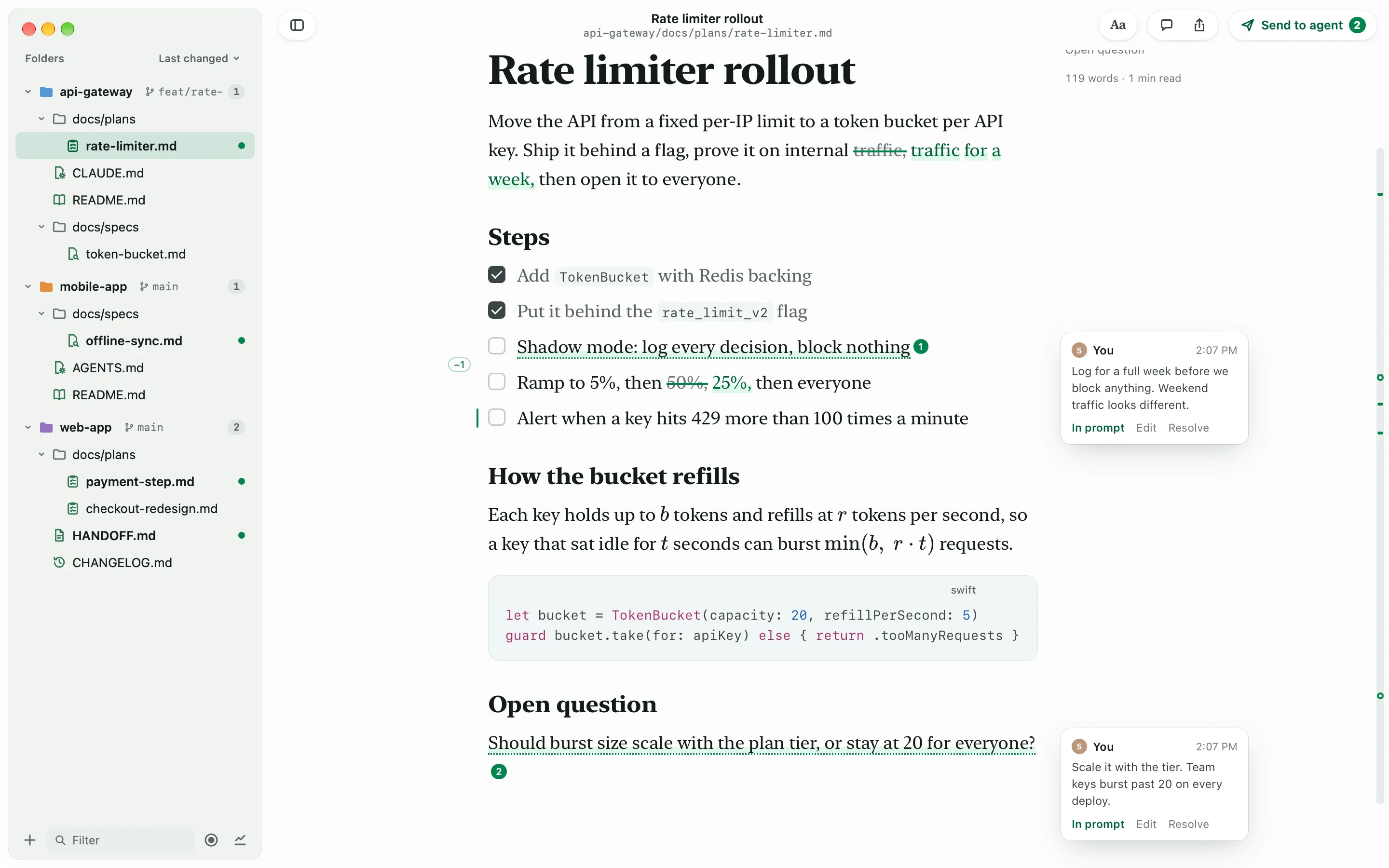
Your comments don’t touch the file. dotPen stores them in its own app folder, so the plan and your repo stay exactly as Claude wrote them. The toolbar’s comment button opens a panel with every comment in the file, split into open and resolved.
What dotPen sends back
When I’ve gone through the whole plan, I click Send to agent in the toolbar, or press Command-Return. dotPen builds one prompt from every comment, with the line number and the exact text each one points at:
Review notes on docs/plans/rate-limiter.md

1. On line 14, "Shadow mode: log every decision, block nothing"
   Log for a full week before we block anything.
   Weekend traffic looks different.

2. On line 29, "Should burst size scale with the plan tier, or stay
at 20 for everyone?"
   Scale it with the tier. Team keys burst past
   20 on every deploy.
That’s the prompt for the two comments in the screenshot above. Claude doesn’t have to guess which “shadow mode part” I meant. The quote is right there.
Two switches sit under the prompt:
Include what changed since I read it: adds a list of the lines that changed since my last read, so Claude knows what I’ve already seen. dotPen marks those changes on the page too, which I wrote about in how to review what an AI agent changed, without git.
Resolve comments after sending: marks the comments resolved once they’re sent, so the margin is clean for the next round.
Send copies the prompt so you can paste it straight into Claude Code. Copy prompt does the same without closing the sheet.
Let Claude Code read your comments itself
Pasting works everywhere. But dotPen also runs a small MCP server on your Mac, the agent bridge, so Claude Code can read your comments without the copy and paste.
To connect it:
- In dotPen, open Settings, then Integrations, and turn on Agent bridge.
- Copy the Claude Code command and run it once in Terminal:
claude mcp add --transport http --scope user dotpen http://127.0.0.1:47319/mcpThe --scope user part adds dotPen for every project, so you only do this once. The server only listens on your own Mac, at 127.0.0.1.
Once it’s connected, Claude Code can list every open comment in your watched folders, read the comments on one file, and mark a comment resolved when it has made the change.
What I do: I leave my comments, then tell Claude something like “read my dotPen comments on the rate limiter plan and update it”. When it’s done, the comments it handled show up as resolved in the margin.
The same Settings screen has a command for Codex and Gemini CLI, and a config entry for Cursor.
How I write feedback an agent acts on
The tool makes the anchor automatic. The comment itself is still up to you. A few rules I follow:
- One comment per problem. Two issues in one note usually means one gets fixed.
- Say what and why. “Log for a full week” is a change. “Weekend traffic looks different” is the reason, and the reason stops Claude from undoing it later.
- Answer the plan’s open questions directly. If the plan asks something, reply on that line with the decision, not “good question”.
- Ask questions as questions. If you’re unsure, write “Why Redis here instead of the database we already have?” Claude answers, and you decide.
- Comment on what’s missing, too. Select the step before the gap and say what should come next.
Then send everything in one go and read the revised plan with its changes marked. You can see the rest of what dotPen does on the features page.
Anchored comments are the whole difference. Claude stops guessing which part you meant, and you stop rereading the entire plan to check whether it understood.
Questions
- How do I change a Claude Code plan before it starts coding?
- When Claude Code shows the plan, choose "No, keep planning" and say what to change, or press Ctrl+G to open the plan in your default text editor and edit it yourself.
- Can Claude Code read comments I leave in dotPen?
- Yes, once you connect dotPen's agent bridge. Turn it on in dotPen's Settings, under Integrations, then run the Claude Code command it gives you once in Terminal. Claude Code can then list your comments, read them for a file, and mark them resolved.
- Do dotPen comments change my plan file?
- No. Comments are stored in dotPen's own app folder, so the plan and your repo stay exactly as they are.
- Does this work with Codex and Cursor too?
- Yes. dotPen's Settings has a one-line command for Codex and Gemini CLI, and a config entry to paste for Cursor. Any agent that speaks MCP over HTTP can connect.