

While writing this post, I opened Terminal to count my own Claude Code plans. I use Claude Code every day, so I expected a long list. Instead I got this:
ls: /Users/me/.claude/plans: No such file or directoryNo plans. Not even the folder.
That sent me into Claude Code’s docs, and I came out with two facts I wish I’d known months earlier. Plans don’t live in your project. And the place they do live gets cleaned out every 30 days.
TLDR
Claude Code writes plan mode plans as Markdown files to
~/.claude/plansand deletes anything there older than 30 days. Add"plansDirectory": "./plans"to your Claude Code settings to keep plans in your project instead. Then open that folder in a Markdown viewer to read them rendered, and to see what changed when Claude revises one.
Where Claude Code keeps plans
When you use plan mode, Claude Code thinks through a task before it touches any code, then shows you a plan to approve. You can switch into plan mode with Shift+Tab, or start a single prompt with /plan.
That plan is saved as a plain Markdown file. According to the settings reference, the default folder is ~/.claude/plans, a hidden folder in your home directory. Not your repo. Not the folder you’re working in.
To see what’s there, open Terminal and run:
ls -lt ~/.claude/plansThe -lt part lists the newest plans first, with their dates. If you get “No such file or directory” like I did, there’s nothing in that folder for you to read. On my Mac, where I mostly use Claude Code in the desktop app, I haven’t pinned down where those plans went. That uncertainty is a big part of why I now tell Claude Code exactly where to put them.
Why your old plans disappear
Claude Code tidies up after itself. Its docs list the folders it cleans up automatically, and plans/ is one of them. Anything in there older than cleanupPeriodDays gets deleted. The default is 30 days.
The same setting controls how long Claude Code keeps your session transcripts. So you can raise the number to keep plans longer, but you’ll keep more of everything else too.
For most files in ~/.claude, a 30-day cleanup makes sense. For plans, it bothers me. A plan is the clearest record of why a change was made: what Claude Code was asked to do, what it decided, which files it meant to touch, and what it wasn’t sure about. Six weeks later, when something breaks and I want to know why we did it that way, that’s exactly the file I want back.
Keep plans in your project instead
Claude Code has a setting for this, plansDirectory. Add it to your project’s .claude/settings.json:
{
  "plansDirectory": "./plans"
}
The path is relative to your project’s root, so this puts plans in a plans folder next to your code. You can also add it to your user settings in ~/.claude/settings.json, and every project gets its own plans folder.
The docs mention two ways this quietly falls back to ~/.claude/plans:
- A path that points outside the project, like
../plans. - A backslash in the path on a Mac. Use forward slashes.
After you add the setting, run plan mode once and check that a new file shows up in ./plans. It takes a minute, and you’ll know for sure instead of finding out a month later.
Plans that live in your project skip the 30-day cleanup. They also sit right next to the code they’re about, which is where I look for them anyway.
Should you commit your plans?
I don’t think there’s one right answer here.
Committing plans gives you history. Six months from now, git log on a file can point you to the plan that explained the change. For a team, that’s a lot of context for free.
But plans are written for you, not for the public. A plan can quote internal URLs, customer names, or a note that one part is a temporary hack. Those don’t belong in a public repo. If your repo is public, or your plans touch anything private, add the folder to .gitignore:
plans/What I do: on private repos where the team agrees, plans get committed. On anything public, they’re ignored, and I keep them locally.
If you do ignore them, one heads-up for dotPen users: dotPen hides .gitignore paths by default so node_modules and build folders don’t fill your list. Turn on Show ignored paths in Settings, or click Show at the end of the file list.
How I read a plan before I approve it
When Claude Code finishes a plan, it asks how you want to proceed. You can approve it with automatic edits, approve it and review each edit, or choose “No, keep planning” and say what to change. You can also press Ctrl+G to open the plan in your text editor and edit it yourself.
Plans read well. That’s the trap. A confident, tidy plan can still skip the hard part. So before I approve one, I go through it with five questions:
- Does it restate the task the way I meant it? If the first paragraph is slightly off, everything after it will be too.
- Which files will it touch? A plan for a small fix that lists eight files is a plan I want to talk about.
- What’s the order of the steps? Migrations before code that needs them. Tests before the risky change, not after.
- What did it decide on its own? Look for choices you never asked for, like a new dependency or a renamed function.
- What is it unsure about? Good plans end with open questions. If there are none, I ask for them.
If I only had time for one, it would be question 4.
Read plans rendered, not raw
This is the part I care about most. A plan is a document, so I want to read it like one.
Open a plan in a text editor and you get the raw Markdown: pound signs for headings, dashes for lists, - [ ] for every task, and code blocks with no colors. It’s all there, but it’s slow to read, and it’s easy to miss a line.
So I read plans in dotPen, the Markdown reader for Claude Code that we build. I watch the project folder once, and every plan Claude Code writes shows up in the file list, marked unread until I open it.
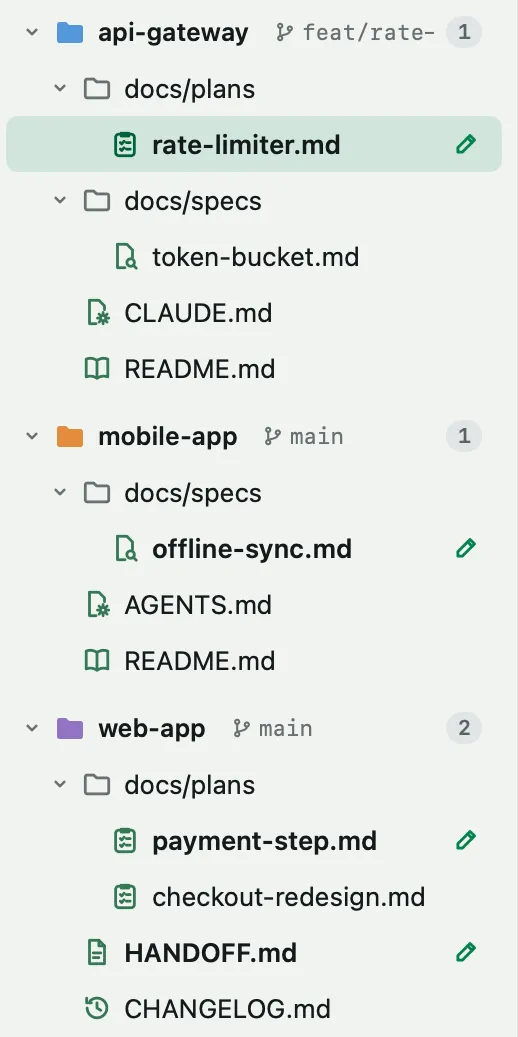
On first launch, dotPen asks for your code folder and finds the projects inside it by their CLAUDE.md, AGENTS.md or .cursor files, so most people never add folders by hand.
The pencil beside a file means an agent is still writing it. I can open a plan mid-write and follow along as each section lands. Headings, task lists, tables, code, Mermaid diagrams and math all render as they come in. If you let dotPen read Claude Code’s session logs, which you can turn on in Settings, it also names the agent that wrote each file. That helps when two agents are working in the same repo.
See what changed when Claude revises the plan
Plans rarely stay finished. I say “No, keep planning”, ask for one change, and Claude Code rewrites part of the file. Then I have to find what moved.
dotPen keeps a copy of each file as I last read it. The next time I open the plan, it marks the edits on the page: old words struck through, new words in green, a bar beside new blocks, and a small tag where lines were removed. A chip at the top counts the changes, and N jumps to the next one.
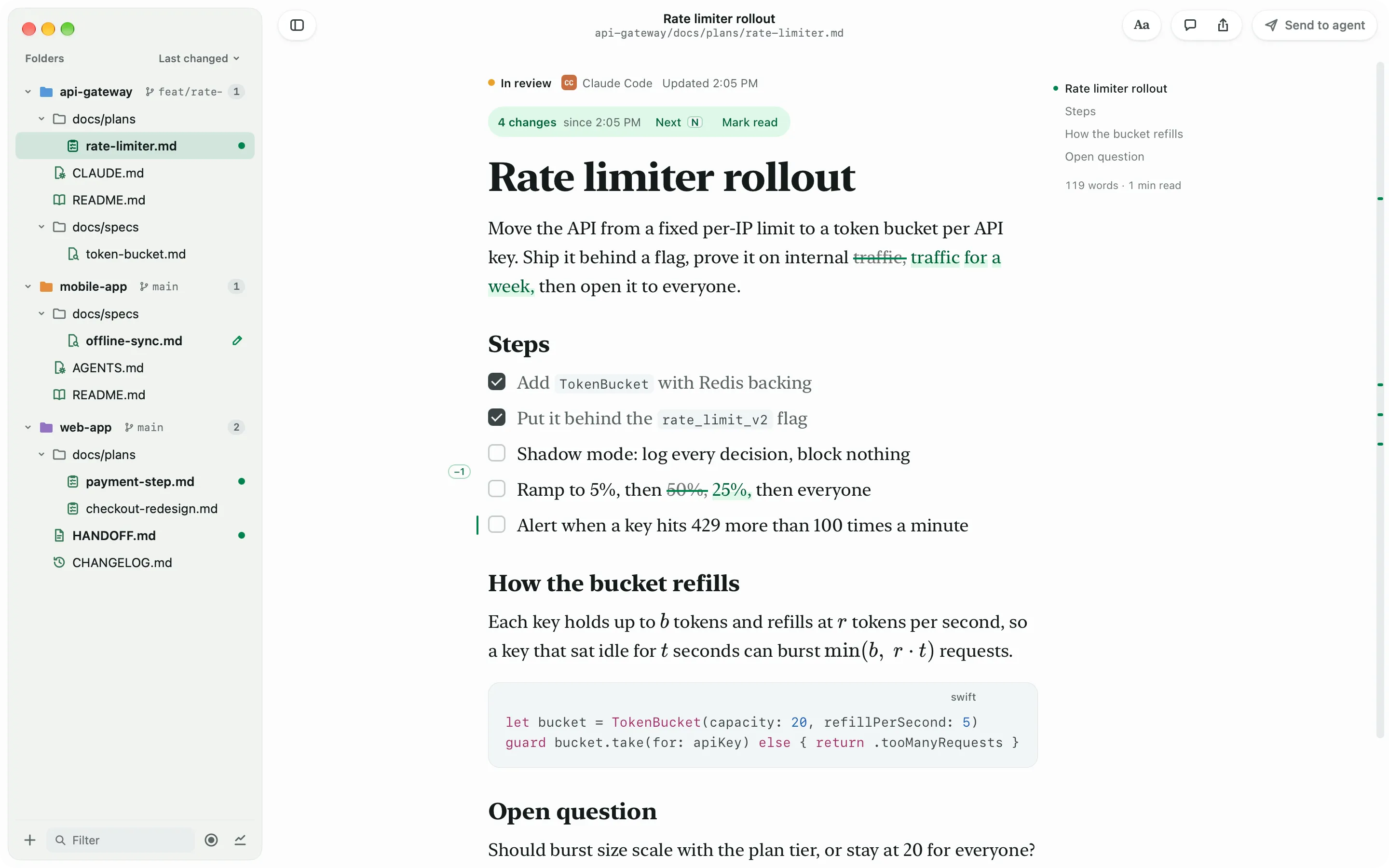
In that plan, I can see in a few seconds that Claude stretched the internal test to a week, lowered a ramp step from 50% to 25%, dropped one step and added an alert. I don’t need git for any of it, which matters because plans are usually the files nobody commits. I wrote more about this in how to review what an AI agent changed, without git.
If something in the plan is wrong, I select the text, leave a comment, and send all my comments back to Claude Code at once. That part has its own post: how to give feedback on a Claude Code plan. You can see the rest of what dotPen does on the features page.
If you’d rather leave plans where they are
You can watch ~/.claude/plans directly. In dotPen, add it as a watched folder. The folder is hidden, so press Command-Shift-Period in the folder picker to show hidden folders, then pick plans inside .claude.
That works, but the 30-day cleanup still applies, so treat that folder as a reading room, not an archive. Anything you want to keep, copy into the project.
If you’re starting a new project this week, add the plansDirectory line before Claude Code writes its first plan. It’s one line, and next month, when you go looking for the plan, it’ll still be there. Mine wasn’t.
Questions
- Where does Claude Code save plans?
- By default, in ~/.claude/plans, a hidden folder in your home directory. You can change it with the plansDirectory setting, which takes a path relative to your project root, such as ./plans.
- Does Claude Code delete old plans?
- Yes. Claude Code cleans up files in ~/.claude/plans once they're older than cleanupPeriodDays, which is 30 days by default. Plans saved inside your project with plansDirectory aren't part of that cleanup.
- Can I edit a plan before Claude Code starts working?
- Yes. When Claude Code shows a plan, press Ctrl+G to open it in your default text editor. You can also pick "No, keep planning" and tell Claude what to change.
- Should I commit Claude Code plans to git?
- It depends on your team. Committed plans give you a record of why code changed. They can also carry internal URLs, customer names or other details you wouldn't put in a public repo, so read a plan before you commit it.
- Can dotPen read plans from ~/.claude/plans?
- Yes. Add the folder as a watched folder in dotPen. It's hidden, so press Command-Shift-Period in the folder picker to show it.