
I read a rate limiter plan first thing in the morning. It was fine. I left two notes for Claude Code and went to do something else.
By lunch the plan had changed. Same title, same headings, mostly the same words. Somewhere in there, the agent had acted on my notes, and probably changed a few things I never asked for. And I had no quick way to see which.
That’s the question I ask most when I review agent work. Not “what does this say?” but “what changed since I read it?”
TLDR
git can’t answer “what changed since I last read this file”. It compares files to your last commit, and it ignores files that were never committed, which is where most agent plans live. dotPen keeps a copy of each file as you last read it and marks every changed word on the page. Press N to step through the changes, A to accept one, or send it back to the agent as a comment.
Why git diff doesn’t answer it
The first thing most developers reach for is git. It’s a fair instinct. It’s just answering a different question.
git diff compares a file to your last commit. If the agent rewrote the plan twice since then, you see both rewrites mixed together, plus anything you changed yourself. There’s no “since I last looked” in git, because git doesn’t know when you look at anything.
And plans often aren’t in git at all. A new plan an agent just wrote is untracked, so this is what you get:
$ git status --short
?? docs/plans/rate-limiter.md

$ git diff docs/plans/rate-limiter.md
$
git status sees the file. git diff prints nothing. That’s correct behavior, it only diffs tracked files, but it’s no help when you’re trying to review the thing.
The usual workarounds, and why I stopped using them
Before we built change marks into dotPen, I’d seen people try three things. I tried all of them.
- Copy the file before every revision. Then run
diffon the two copies. It works, but only if you remember to make the copy every single time, and you never do. - Commit the plan after every read. Now git can show you the difference. It also fills your history with “wip plan” commits nobody wants to see in a pull request.
- Ask the agent what it changed. This is the easiest, and the one I trust least. The agent tells you what it meant to change. It doesn’t always mention the other three lines it touched on the way.
All three put the work on you. I wanted the tool to remember what I’d read, the same way an editor remembers what they’ve already marked.
What “since I last read it” needs
To mark changes since you last read a file, something has to keep the file as it looked when you read it.
dotPen, the Markdown reader for Mac we build for exactly this kind of review, does that. When you read a file and mark it read, dotPen keeps a copy of what you saw, in its own app folder on your Mac. The next time the file changes, it compares the new version to that copy.
Your repo stays untouched. The file doesn’t need to be committed, staged or even tracked. It just needs to be in a folder dotPen watches.
How the changes look
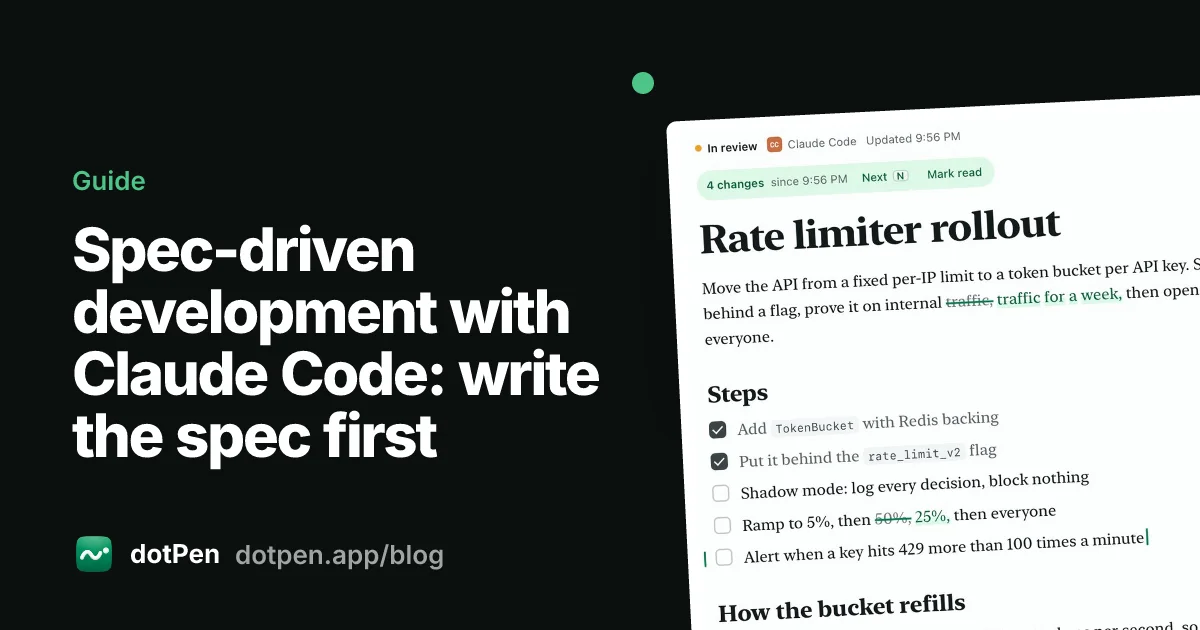
dotPen marks the edits on the rendered page, the way an editor marks a proof:
- Changed words are struck through, with the new words beside them in green.
- A green bar sits beside blocks that are new.
- A small tag like “−1” sits where lines were removed.
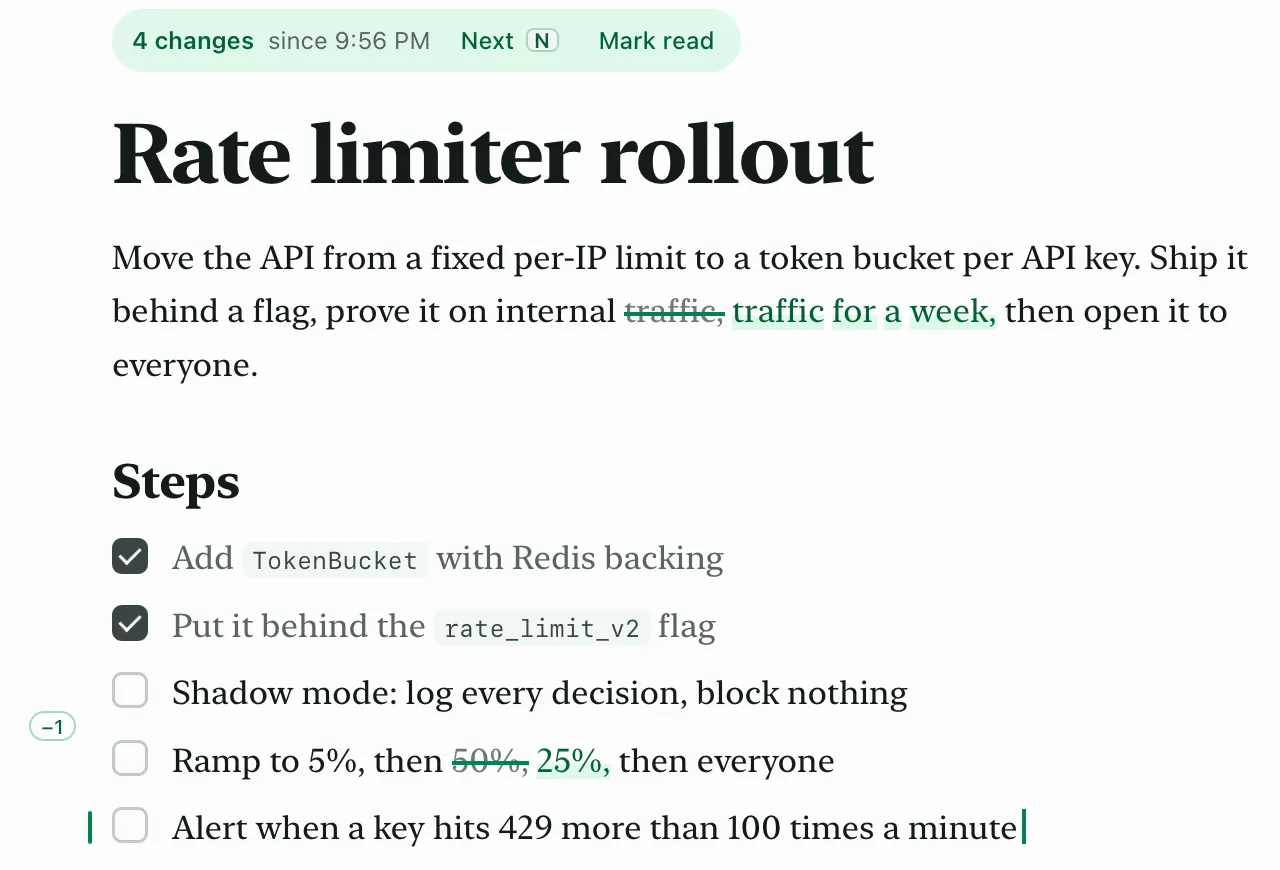
This is that rate limiter plan. In a couple of seconds I can see the agent stretched the internal test to a week, lowered the second ramp step from 50% to 25%, removed one step and added an alert. The week was my note. The 25% was not.
That second one is the whole reason this matters. A full reread might have caught it. A skim wouldn’t.
Step through every change
A chip at the top of the page counts the changes and says when you last read the file. Press N to jump to the next change and Shift-N to go back.
The scrollbar shows a tick at each change too. In a long spec, I look at the ticks before I start. If they all sit in one section, I know where the agent spent its time. If they’re spread through the whole file, I slow down.
When I’m done, I click Mark read in the chip. The marks fade, and that version becomes the new copy dotPen compares against.
Accept a change or send it back
When N lands on a change, a small bar appears at the bottom of the page with Accept, Send back and Next.
Accept: press A, or click it, and that one change counts as read, so it stops showing. It doesn’t edit the file. The plan stays exactly as the agent wrote it, and only dotPen’s copy moves forward.
Send back: this turns the change into a comment for the agent, quoted with its line. That’s how I pushed back on the 25% ramp without retyping the context. Removed lines can’t be sent back, since there’s no text left on the page to quote.
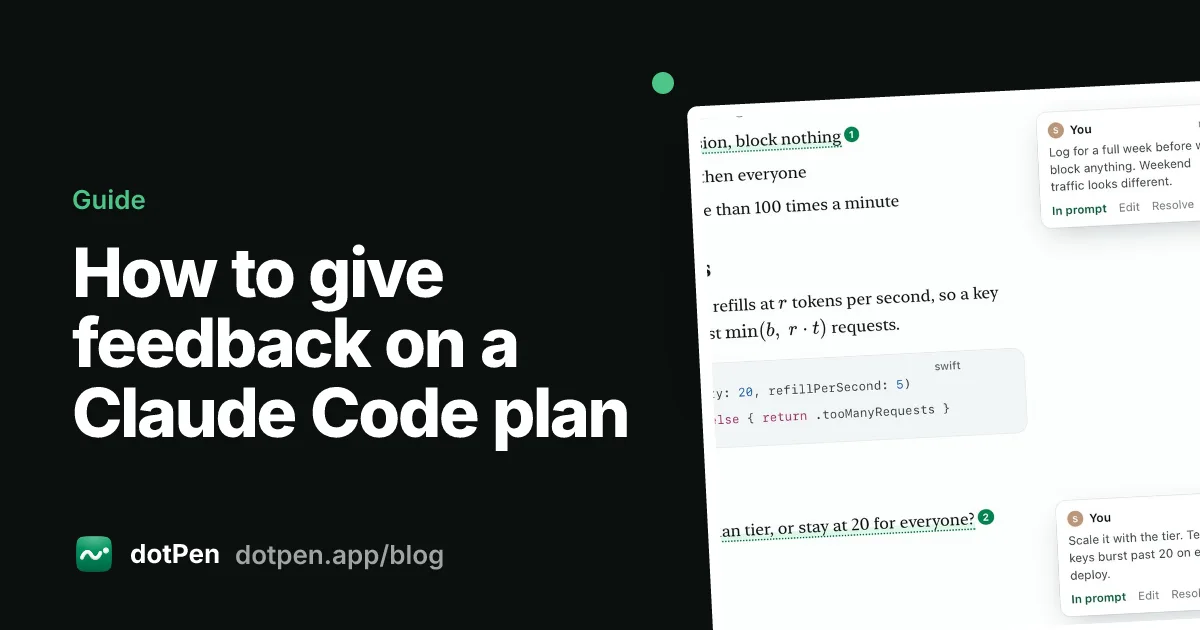
When I’ve gone through the file, I send all my comments to the agent at once. I wrote up that part in how to give feedback on a Claude Code plan.
The routine I use for every agent revision
This is what a review looks like for me now, start to finish:
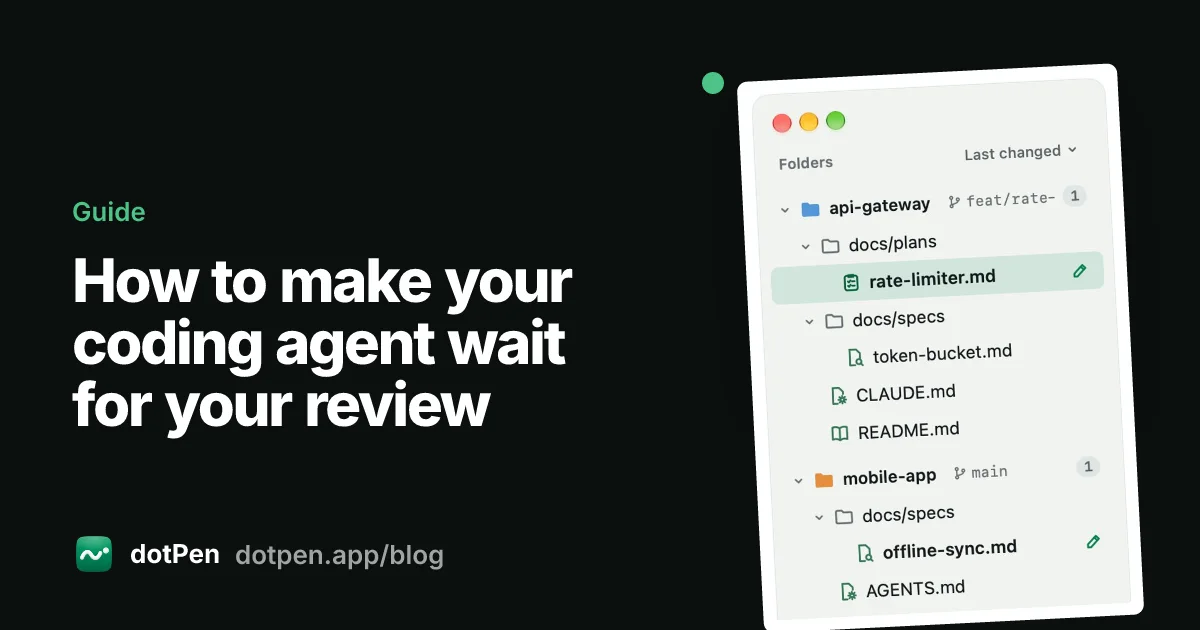
- Open the file the agent just finished. The pencil in dotPen’s file list turns into an unread dot when it’s done.
- Glance at the change chip and the scrollbar ticks to see how much moved and where.
- Press N through every change. Accept the ones I asked for.
- Send back anything I didn’t ask for and don’t agree with.
- Send the comments, then Mark read.
Five steps, and most revisions take me a minute or two. The habit that makes it work is the last step. If you mark files read when you finish them, every mark you see later is something new.
When this helps most
It works on any Markdown file in a folder you watch, not only plans. I use it most on specs and handoff notes that agents edit across a long session, and on Claude Code plans, which change every time I ask for a revision. You can see the rest of what dotPen does on the features page.
If you review agent output every day, try one revision this way and compare it to your usual reread. The difference shows up on the first file.
Questions
- Do I need git to see what an agent changed?
- No. dotPen keeps its own copy of each file in your watched folders as you last read it, so it can mark changes in files that were never committed or even tracked.
- Why doesn't git diff show changes in my plan file?
- git diff only covers tracked files, and it compares them to your last commit. A new plan that was never added to git shows up in git status as untracked, and git diff shows nothing for it.
- Does dotPen change my files when I accept a change?
- No. Accepting moves the change into dotPen's own copy of what you've read, so it stops showing. The file stays exactly as the agent wrote it.
- Where does dotPen keep its copies?
- In its own app folder on your Mac. Nothing is added to your repos, and nothing leaves your Mac.