
A teammate asked me to send “the rollout plan as a PDF” so they could read it on a flight. The plan was a Markdown file an agent had written. I opened it, looked for an export button in my editor, and realized I had never once turned Markdown into a PDF.
It turns out there are a lot of ways to do it on a Mac. Some take ten seconds. One took me most of an afternoon and a few gigabytes of LaTeX. This is what I tried, and what I use now.
TLDR
The fastest way is a Markdown viewer with PDF export. In dotPen, open the file and press Command-E: you get a paged PDF with tables, code, math and Mermaid diagrams intact, and no change marks. pandoc works too, but its default PDF route needs LaTeX; pass an HTML-based engine like weasyprint to avoid it. For a file people will open in a browser, export self-contained HTML instead.
Why there’s no “Save as PDF” for Markdown
A .md file is plain text with formatting marks. To make a PDF, something has to render it into a page first: headings, tables, highlighted code, diagrams. Then that page gets split into sheets of paper.
TextEdit can save a PDF, but it saves what it shows you, which is the raw Markdown. So the first step is always an app that renders Markdown. I covered those in how to open a .md file on a Mac.
Export from a Markdown viewer
This is the one I use now. In dotPen, the free Markdown viewer for Mac we build:
- Open the
.mdfile. - Choose File, then Export as PDF, or press Command-E. It’s also in the share button in the toolbar.
- Pick a name and a folder.
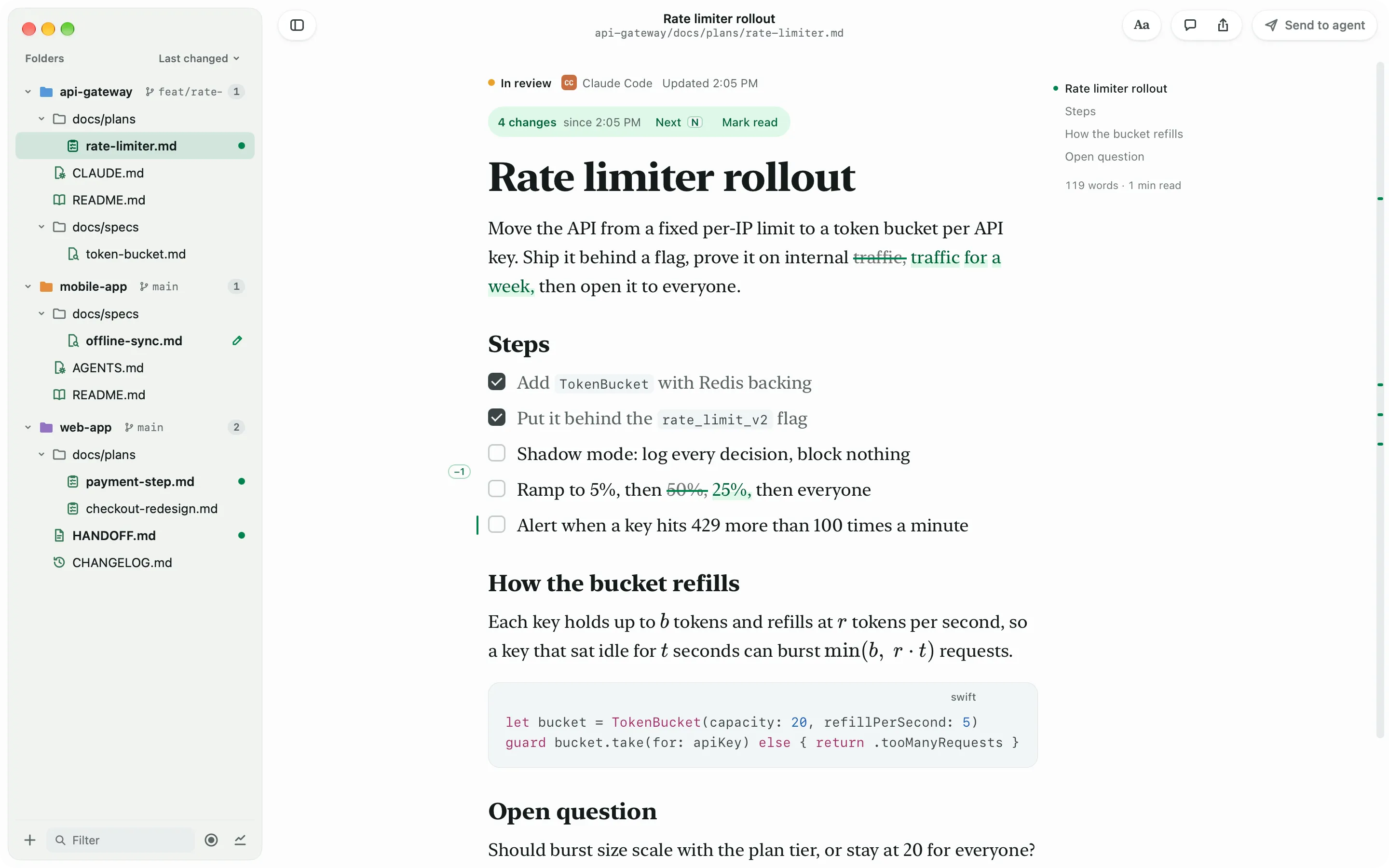
That plan is what I sent. The PDF looks like the page, with a few things changed for paper:
- Change marks, comment numbers, copy buttons and notices are left out, so you get the document as it reads now.
- Long lines in code blocks wrap instead of running off the page.
- Code blocks, tables and Mermaid diagrams aren’t split across two pages.
dotPen makes the PDF through the Mac’s own print system, so long documents break into proper pages. If you’d rather choose the paper size or print to a real printer, Print is right below it, on Command-P.
Export self-contained HTML instead
Half the time, a PDF isn’t what the other person needs. If they’ll read it on a screen, HTML is better: it reflows on a phone, links work, and text can be copied cleanly.
In dotPen, choose File, then Export as HTML, or press Shift-Command-E. You get a single .html file with the styles, the diagrams, the math fonts and any images built in. It works offline, and nothing loads from the internet when someone opens it. You can email it or drop it in a shared folder like any other file.
Print to PDF from any app
Every Mac app that prints can make a PDF. Choose File, then Print, then click PDF at the bottom of the dialog and choose Save as PDF.
So if you already render Markdown somewhere, this works:
- VS Code: the built-in Markdown preview, on Shift-Command-V, is for reading. For PDF export from VS Code, people usually add an extension.
- GitHub: open the file on github.com, then print the page from your browser and save it as a PDF. You’ll get the site’s header and sidebar too unless you trim them.
- Obsidian: it has its own Export to PDF command for notes.
Use pandoc from Terminal
pandoc is the tool developers reach for when they want to script this. The basic command is:
pandoc plan.md -o plan.pdfThis is the afternoon I mentioned. By default pandoc makes PDFs through LaTeX, and its manual says that requires a LaTeX engine to be installed. On a Mac that means a large TeX distribution before the command does anything.
You can skip LaTeX by choosing a different engine. pandoc supports several, including HTML-based ones:
pandoc plan.md -o plan.pdf --pdf-engine=weasyprintYou’d install WeasyPrint first, or use --pdf-engine=typst with Typst installed. Either way, Mermaid diagrams won’t draw on their own: pandoc sees them as code blocks unless you add a filter.
pandoc is worth it if you convert many files, need custom templates, or want it in a build script. For sending one plan to one person, it’s a lot.
Which one I’d use
For one file to one person, export from a viewer. It’s one shortcut, and the diagrams and tables come out right. For a file people read on screens, export HTML. For a hundred files in a pipeline, use pandoc.
If the file came from an AI agent and might change again tomorrow, export at the last moment, after you’ve checked what changed since you last read it. I wrote about that in how to review what an AI agent changed, without git. You can see everything dotPen exports on the features page.
Questions
- How do I convert a .md file to PDF on a Mac?
- Open it in a Markdown viewer that exports PDF, like dotPen, and choose File, then Export as PDF, or press Command-E. You can also print from any app that renders Markdown and choose Save as PDF in the print dialog.
- Can I convert Markdown to PDF without LaTeX?
- Yes. dotPen exports PDF directly. With pandoc, pass an HTML-based engine like --pdf-engine=weasyprint, or use typst, instead of the default LaTeX route.
- Do Mermaid diagrams show up in the PDF?
- In dotPen, yes. Diagrams, tables, code and math are drawn in the PDF as they are on the page, and dotPen keeps them from splitting across two pages.
- Will change marks or comments show up in the exported PDF?
- No. dotPen's PDF leaves out change marks, comment numbers and copy buttons, so you get the document as it reads now.