
I came to software from soil science, so the first .md file I ever opened looked broken to me. Pound signs at the start of lines. Asterisks around random words. Dashes everywhere. I assumed the file was damaged.
Nothing was wrong with it. It was a Markdown file, and my Mac just didn’t know how to show it.
These days I open more .md files than any other kind. READMEs, release notes, and the plans and specs that coding agents write all come as Markdown. So if you’ve just double-clicked one and got a wall of symbols, this is what’s going on, and how to fix it for good.
TLDR
A .md file is plain text written in Markdown, and macOS has no Markdown viewer built in, so it shows the raw symbols. Open it in a Markdown viewer like dotPen to see it rendered, or select it in Finder and press Space for a Quick Look preview. To make every .md file open rendered, choose File, Get Info, pick your viewer under Open With, and click Change All.
What a .md file is
Markdown is a way of formatting text with plain characters, so the file stays readable anywhere. The marks are instructions:
# Rate limiter rollout

Move the API to a **token bucket** per key.

- [x] Add TokenBucket with Redis backing
- [ ] Shadow mode: log every decision
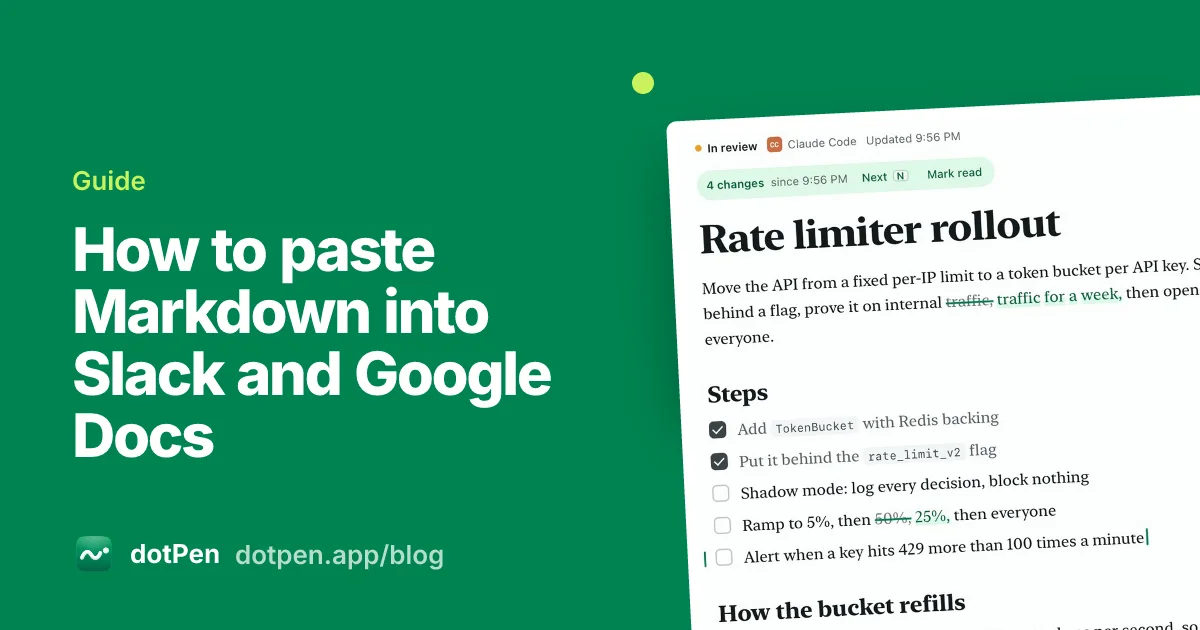
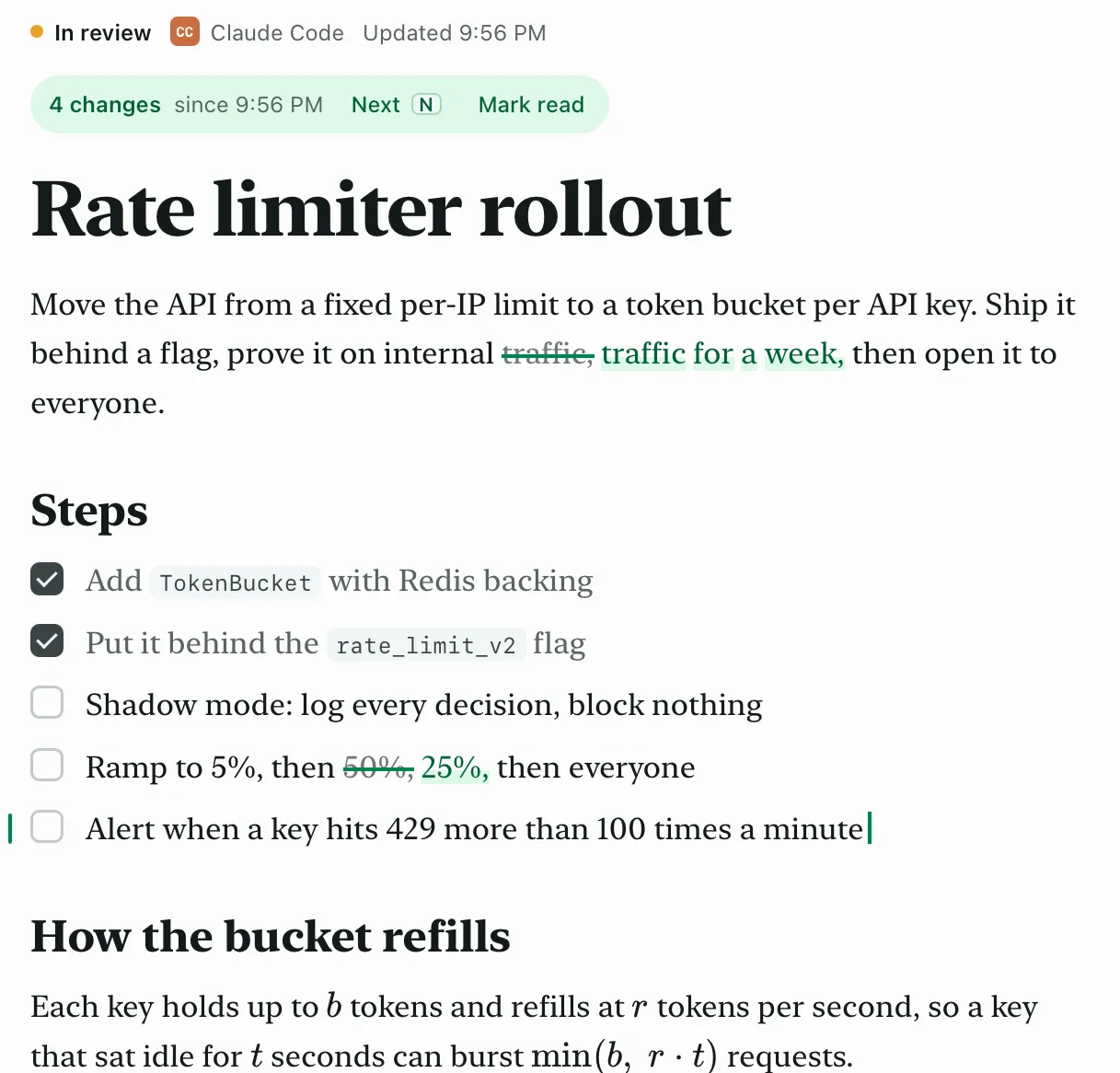
A Markdown viewer reads that and draws a page: a big heading, a sentence with “token bucket” in bold, and two task boxes, one ticked. A text editor shows you exactly what’s in the block above.
That’s the whole trick. The file is fine. You just need something that draws the page.
Why your Mac shows it as plain text
macOS comes with apps that render PDFs, images and Word files, but nothing that renders Markdown. So a double-click hands the file to whatever app has claimed .md. On most Macs that’s TextEdit. If you’ve installed Xcode or a code editor, it might be one of those instead.
Either way, you get the source, not the page.
1. Open it in a Markdown viewer
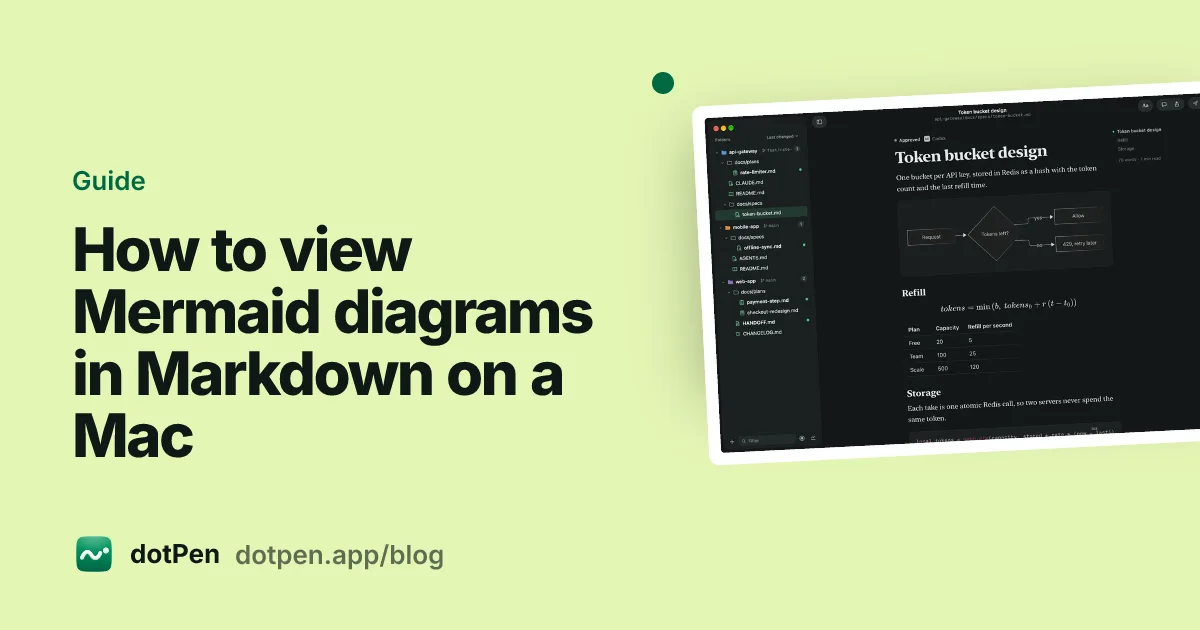
The simplest fix is an app that renders Markdown. I use dotPen, the free Markdown viewer for Mac that we make. Open a .md file in it and you get the page the author meant: headings, tables, task lists, code with syntax highlighting, footnotes, Mermaid diagrams and math.
To try it once without changing anything, right-click the file in Finder, choose Open With, then dotPen.
dotPen is a reader first. You can tick task boxes in the rendered page and it saves the tick to the file. That’s the only edit it ever makes. If someone else, or an agent, changes the file while it’s open, the page updates and keeps your place.
2. Preview it in Finder with Quick Look
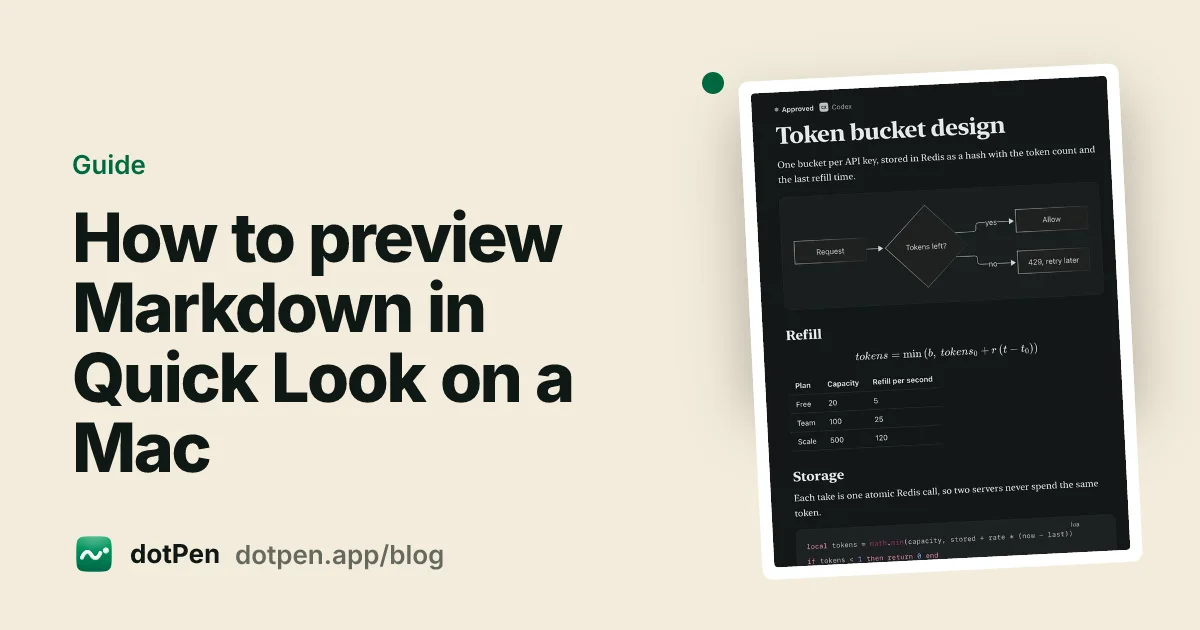
Sometimes I don’t want to open an app at all. Select the file in Finder and press Space. dotPen comes with a Quick Look extension, so the preview shows the rendered page instead of raw text. Press Space again to close it.
This is the fastest way to check what’s in a README before deciding whether to open it. If Space still shows plain text after you install a viewer, I wrote up the fixes in how to preview Markdown in Quick Look on a Mac.
3. Make your viewer the default app
If you open Markdown often, make the viewer the default, so a double-click always renders:
- Select any
.mdfile in Finder. - Choose File, then Get Info.
- Under Open With, pick dotPen.
- Click Change All, then confirm.
From then on, every .md file opens rendered when you double-click it. If you also have .markdown files, repeat this once on one of those.
4. Open it from Terminal
If you live in Terminal, you can open files there too. In dotPen, go to Settings, then Integrations, and copy the command next to Command line. Run it once in Terminal. It asks for your password because it adds a small dotpen command to /usr/local/bin.
After that:
dotpen plan.md
dotpen ~/code/api
The first line opens a file. The second watches a whole folder, so new and changed Markdown files show up in dotPen as they’re written. Run dotpen on its own to watch the folder you’re in.
Other ways to read Markdown on a Mac
dotPen isn’t the only option, and depending on what you do all day, you might not need it.
A code editor: if you already use VS Code, open the file and press Shift-Command-V for a rendered preview. It’s good for files you’re also writing.
GitHub: if the file lives in a repository on GitHub, open it there and GitHub renders it for you.
A Markdown viewer: this is the one I’d pick if you read more Markdown than you write, or if the files come from AI agents. A viewer opens instantly, works in Finder, and doesn’t need the file to be anywhere but your Mac.
Which one I’d use
For a single README someone sent you, Quick Look is enough. For anything you read every day, make a viewer the default and forget about it.
If you’re reading the plans an AI coding agent writes, that’s where dotPen does the most. It watches your project folders, shows what’s new, and marks what changed since you last read a file. You can see every feature, or start with how I read Claude Code plans on a Mac.
Questions
- What is a .md file?
- A plain text file written in Markdown, a simple way to mark headings, lists, links and emphasis with characters like
- Can TextEdit open .md files?
- Yes, but only as plain text. You see the pound signs, asterisks and dashes instead of headings, emphasis and lists.
- Is .markdown the same as .md?
- Yes. Both extensions mean a Markdown file, and macOS treats them as the same file type. dotPen opens both, along with .mdx files.
- Can I edit a .md file in dotPen?
- dotPen is a reader. The one edit it makes is ticking task boxes, which it saves to the file. To write Markdown, use any text editor and keep dotPen open beside it, since it updates as the file changes.
- Is dotPen free?
- Yes. dotPen is free and open source, with no account, no ads and no in-app purchases.