
I press Space in Finder dozens of times a day. Photos, PDFs, screenshots, all instant. Then one day I pressed it on a README and got this: a narrow window of plain text, pound signs down the left side, asterisks scattered through every paragraph.
Quick Look works for almost everything on a Mac. Markdown just isn’t one of the things it knows out of the box.
The fix takes a couple of minutes, and once it’s working you’ll check READMEs, plans and notes without opening a single app.
TLDR
macOS can’t render Markdown in Quick Look on its own, so it shows .md files as plain text. Install a Markdown viewer that comes with a Quick Look extension, like dotPen, and open it once so macOS registers the extension. Then select any .md file in Finder and press Space. If you still see plain text, check the extension is on under System Settings, General, Login Items & Extensions.
What Quick Look is, and why Markdown shows as plain text
Quick Look is the preview you get when you select a file in Finder and press Space. It’s also what you see in Finder’s preview pane and in column view.
For each kind of file, macOS needs something that knows how to draw a preview. Apple ships previews for images, PDFs, video, Office documents and plain text. A .md file is plain text underneath, so that’s how Quick Look shows it: the raw Markdown, symbols and all.
Apps can add their own previews through a Quick Look extension. That’s the piece you need for Markdown.
Get rendered Markdown previews
- Install a Markdown viewer that includes a Quick Look extension. I use dotPen, the free Markdown viewer for Mac we build, which has one.
- Move the app to your Applications folder if it isn’t there already, and open it once. That’s when macOS registers the app and its extension.
- Select a
.mdfile in Finder and press Space.
You should see the rendered page: real headings, bold and italic text, lists and code blocks. Press Space again to close it, or use the arrow keys to move to the next file and keep previewing.
What shows up in the preview
This depends entirely on the extension. Some only handle basic formatting.
dotPen’s Quick Look extension uses the same renderer as the app itself. So the preview gets GitHub-style Markdown with tables, task lists and footnotes, code with syntax highlighting, Mermaid diagrams, and math. Front matter at the top of a file shows as a tidy card instead of a block of raw YAML.
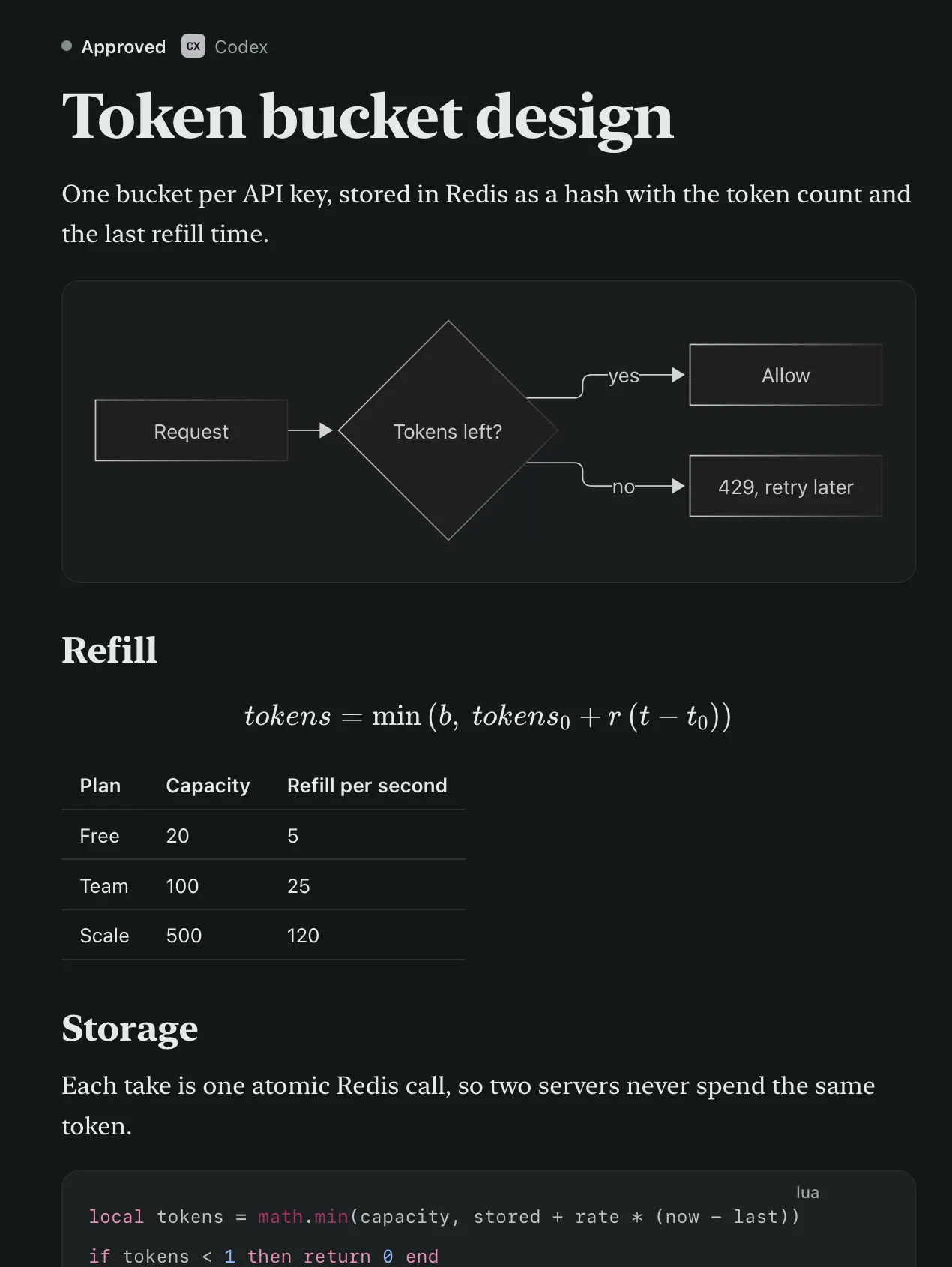
That’s a design doc an agent wrote, rendered the way dotPen draws it. The diagram is Mermaid, the formula is math, and both are just text in the file. It also previews .markdown and .mdx files, and Cursor’s .mdc rule files, not only .md.
When Space still shows plain text
If you installed a viewer and the preview still looks raw, check these in order.
1. Open the app once. If you haven’t launched it since installing, macOS may not know about the extension yet.
2. Check the extension is switched on. On macOS Sequoia and later, open System Settings, choose General, then Login Items & Extensions. Look for the app’s Quick Look extension in the Extensions list and make sure it’s on.
3. Confirm macOS can see it. Open Terminal and run this, replacing dotpen with your viewer’s name:
pluginkit -m -v -p com.apple.quicklook.preview | grep -i dotpenIf it prints a line with the app’s path, the extension is registered. If it prints nothing, the extension isn’t installed where macOS can find it. Reinstall the app into Applications.
4. Look for another app taking over. If you’ve installed more than one Markdown app, two extensions may both claim .md files, and you can’t pick between them in System Settings. Turn off the one you don’t want, or remove that app.
5. Test from Terminal. This opens a Quick Look preview directly, which tells you whether the problem is the extension or Finder:
qlmanage -p ~/Desktop/README.mdIf that renders and Finder doesn’t, quit and reopen Finder. Hold Option, right-click Finder in the Dock, and choose Relaunch.
Quick Look or the full app?
I use Quick Look to decide whether to open something. A README from a download, a file someone dropped in a shared folder, a plan I want to glance at before a call.
When I’m actually reading, especially agent plans that keep changing, I open the file in the app. Quick Look shows the file as it is now. The app shows what changed since I last read it, keeps my place, and lets me leave comments. If you want a double-click to open the rendered page too, I covered that in how to open a .md file on a Mac. You can also see every feature in one place.
Once Quick Look renders Markdown, you’ll stop noticing it. That’s the goal. Space just shows you the page, the same as it does for a photo.
Questions
- Why does Quick Look show my Markdown file as plain text?
- macOS doesn't include a Markdown preview. Quick Look falls back to plain text until an app installs a Quick Look extension for Markdown files.
- How do I turn on a Quick Look extension on macOS Sequoia or later?
- Open System Settings, go to General, then Login Items & Extensions, and look for the app's Quick Look extension in the Extensions list. Make sure it's switched on.
- Can Quick Look show Mermaid diagrams and math?
- Only if the extension renders them. dotPen's Quick Look extension uses the same renderer as the app, so tables, task lists, code, Mermaid diagrams and math all show in the preview.
- Does dotPen's Quick Look preview work with .mdx and Cursor rule files?
- Yes. dotPen's extension previews .md, .markdown and .mdx files, and Cursor's .mdc rule files.