
The first time I shared an agent’s plan with the team, I opened the .md file, selected everything, and pasted it into Slack. What showed up was the raw file: ## Steps, **token bucket**, - [ ] on every task. Someone replied with a single question mark.
I tried Google Docs next for the longer version. Same thing, a document full of symbols.
Both apps can handle formatted text. They just don’t read Markdown the way you’d expect, and each one supports a different slice of it.
TLDR
Slack doesn’t read standard Markdown: it has its own markup, with single asterisks for bold, no headings and no tables. Google Docs can paste Markdown directly, with right-click, then Paste from Markdown. The easiest fix for both is to copy from a rendered view instead of the raw file. In dotPen, the share menu has Copy for Slack and Copy for Google Docs, each shaped for what that app can show.
What Slack does with Markdown
Slack has two ways of formatting a message.
By default you use the formatting toolbar, and Slack formats lists as you type. Type 1. and a space for a numbered list, or an asterisk and a space for bullets.
There’s also a setting for typing markup yourself. In the desktop app, click your profile picture, choose Preferences, then Advanced, and under Input Options check “Format messages with markup”. According to Slack’s help page, the markup it reads is:
*bold*with single asterisks, not double._italic_and~strikethrough~.- Backticks for
code, and three backticks for a code block. >at the start of a line for a quote.[text](link)for links.
Two things Slack messages don’t have at all: headings and tables. Slack’s docs point you to a canvas for tables.
And one catch that confused me for a week: with “Format messages with markup” turned on, Slack says formatting is applied after you send, and messages you copy and paste appear in plain text. So that setting is good for typing, and bad for pasting.
What Google Docs does with Markdown
Google Docs is friendlier. According to Google’s help page, you can:
- Paste Markdown: copy the raw Markdown, then right-click in the document and choose Paste from Markdown. Docs turns it into formatted text.
- Copy as Markdown: select part of a doc, right-click, and choose Copy as Markdown.
- Download as Markdown: File, then Download, then Markdown (.md).
- Type Markdown: turn on Tools, then Preferences, then Enable Markdown, and Docs formats things like bold, italics and links as you type.
If you don’t see the Markdown options, check that Enable Markdown preference first.
Copy from a rendered view instead
Both apps accept formatted text when you paste. So the most reliable trick is to copy the page after it’s rendered, not the raw file.
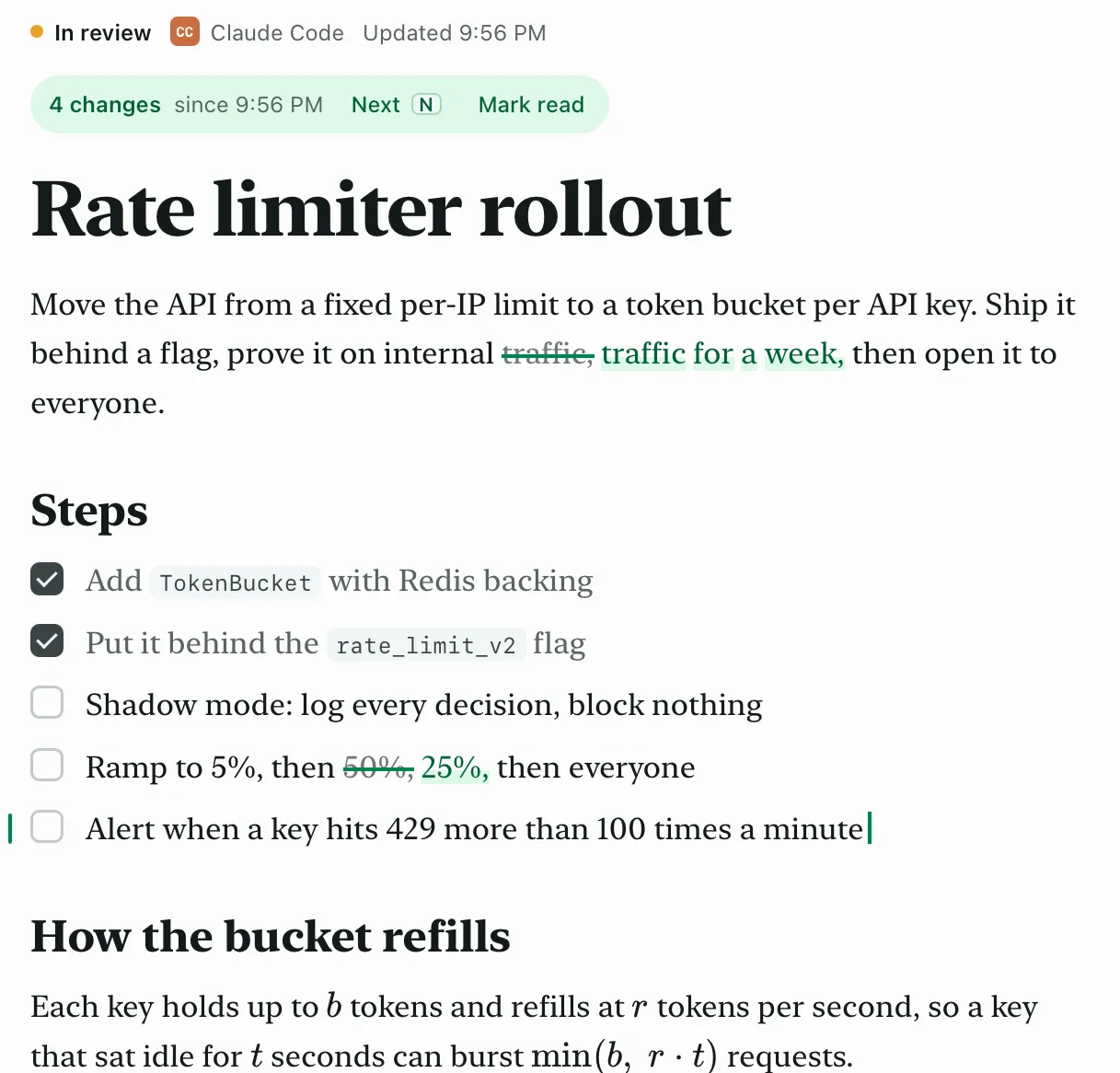
In dotPen, the free Markdown viewer for Mac we build, the share button in the toolbar has a copy for each app. They’re different on purpose, because Slack and Google Docs support different things.
Copy for Slack: headings become bold lines, since Slack has none. Tables become aligned text, since Slack can’t show a table. Images become links. Mermaid diagrams paste as their code, and math as its TeX source.
Copy for Google Docs: headings and tables stay headings and tables. The styling rides on each element, which is how Docs keeps the look of pasted text. Mermaid diagrams paste as images, so the flowchart shows up as a flowchart.
Copy as Markdown: the raw file, for pasting into anything that reads Markdown, like Google Docs’ Paste from Markdown, a GitHub comment, or an agent. The shortcut is Option-Command-C.
If you’ve turned on “Format messages with markup” in Slack, Copy for Slack will paste as plain text, like anything else. Turn that setting off, or paste Copy as Markdown and fix the bold by hand.
A table in Slack, the honest way
Tables are where people get stuck, so here’s what actually works. A plan like this:
| Plan  | Capacity | Refill per second |
|-------|----------|-------------------|
| Free  | 20       | 5                 |
| Team  | 100      | 25                |
can’t render in a Slack message. You have three choices:
- Paste it as aligned text in a code block. It stays readable because every column lines up. This is what dotPen’s Copy for Slack does for you.
- Put it in a canvas. Slack canvases support tables, so a long plan with tables reads better there.
- Link to the file instead. If it’s in a repository, a link to the rendered file on GitHub is often the cleanest share.
What I do now
For a quick update in a thread, I use Copy for Slack in dotPen and trim the paste down to the part I need. For a plan the team will read properly, I paste it into Google Docs with Copy for Google Docs, or export it. I wrote about that in how to export Markdown to PDF on a Mac.
If the plan has diagrams, Google Docs is the better home, since they paste as images. More on those in how to view Mermaid diagrams in Markdown on a Mac. You can see every copy and export option on the features page.
And I haven’t had a single question mark reply since.
Questions
- Does Slack support Markdown?
- Not standard Markdown. With "Format messages with markup" turned on under Preferences, Advanced, Slack reads its own markup, like *bold* with single asterisks, _italic_, ~strikethrough~ and backticks for code. Messages have no heading or table syntax.
- How do I paste Markdown into Google Docs?
- Copy the Markdown text, then right-click in the document and choose Paste from Markdown. Google Docs also has Copy as Markdown, File, Download, Markdown (.md), and a Tools, Preferences setting called Enable Markdown.
- How do I paste a table into Slack?
- Slack messages don't have tables. Paste it as aligned text in a code block, or put it in a Slack canvas, which supports tables. dotPen's Copy for Slack turns tables into aligned text for you.
- Why does Slack paste my text as plain text?
- If "Format messages with markup" is on, Slack says messages you copy and paste appear in plain text. Turn it off under Preferences, Advanced, Input Options to paste formatted text.