Where Cursor plans are stored: home folder and .cursor/plans
Cursor's Plan Mode writes a real Markdown plan, then hides it in your home folder. Where Cursor saves plans, how to move them into your project, and how I read and review them.

Cursor’s Plan Mode is one of my favorite things it does. Before it touches any code, the agent asks questions, reads the codebase, and writes a proper plan with steps you can check off.
What surprised me was where that plan went. It opens in the editor like a file, and I assumed it was in my project. It wasn’t. By default Cursor keeps plans in your home folder, so the plan you approved on Monday isn’t sitting next to the code it changed.
One button fixes that. Here’s how Plan Mode works, where plans are saved, and how I keep and read them.
TLDR
Press Shift+Tab in Cursor’s chat input, or pick Plan Mode from the mode picker, and the agent writes a Markdown plan before coding. Cursor saves plans in your home folder by default. Click Save to workspace to move a plan into .cursor/plans in your project. Edit it in chat or in the file, click Build to start, and read it in a Markdown viewer so you can see what changes when the agent revises it.
How Plan Mode works in Cursor
According to Cursor’s Plan Mode docs, you start in the Agent panel, which opens with Command-I on a Mac. Then press Shift+Tab from the chat input to rotate to Plan Mode, or choose it from the mode picker. Cursor can also suggest it on its own for bigger tasks.
In Plan Mode, the agent:
- Asks clarifying questions about what you want.
- Researches your codebase for the files and patterns involved.
- Creates an implementation plan with steps.
The plan opens as a file you can read and edit. You can change it by asking in chat, or by editing the Markdown directly. When it’s right, click Build and the agent starts coding from it.
If the build goes the wrong way, click Revert, then Confirm. That takes you back to the plan, so you can fix the step that went wrong and run it again.
Where Cursor saves plans
Cursor’s docs say plans are saved in your home directory by default, and that clicking Save to workspace moves a plan into your workspace. Cursor’s own blog is more specific: Save to workspace stores plans in .cursor/plans/, and plans open as Markdown files you can edit directly.
So the two places are:
- Your home folder: where every plan starts. It’s out of your project and out of sight.
.cursor/plans/in your project: where a plan goes when you click Save to workspace. It’s next to your code, and you can commit it.
What I do: I click Save to workspace on every plan I approve. It takes a second, and it means the plan stays with the project. Six weeks later, when I want to know why something was built the way it was, the plan is right there.
Should you commit .cursor/plans?
It depends on your team, but here’s how I think about it.
Committed plans give everyone context. A teammate reading a pull request can open the plan and see what the agent was asked to do and what it decided. That’s worth a lot.
But plans can mention internal URLs, customer names or a note that something is a temporary hack. On a public repo, I’d add .cursor/plans/ to .gitignore and keep plans local. On a private repo where the team agrees, commit them.
Read Cursor plans rendered
Cursor shows the plan inside the editor while you’re working. But I often want to read a plan away from the code, or compare it to yesterday’s version, or read plans from three projects at once.
That’s where dotPen, the Markdown reader we build for agent files, comes in. On first launch it finds projects with a .cursor folder and offers to watch them. Plans saved to .cursor/plans/ then show up in its file list with the rest of the project’s Markdown, marked unread until I open them.
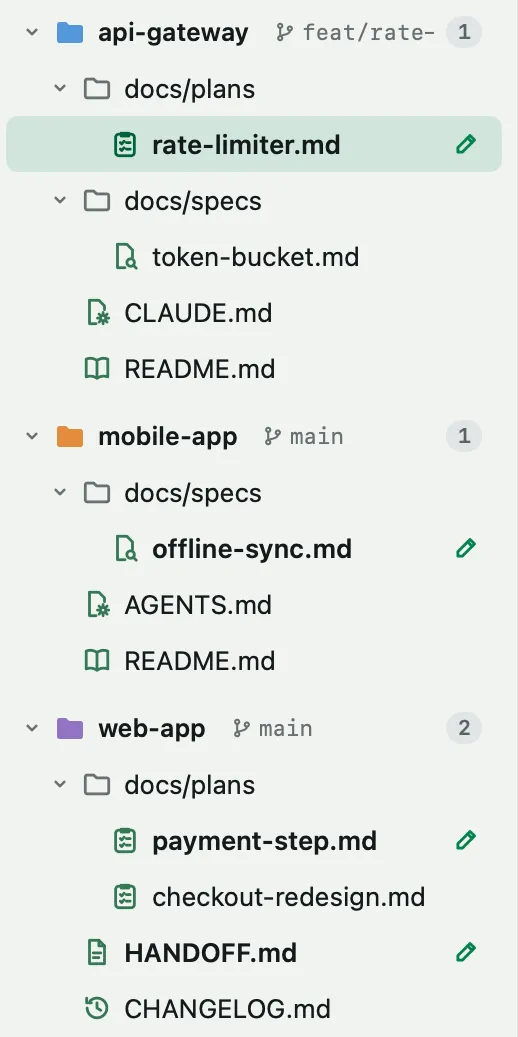
If your .gitignore hides .cursor, dotPen hides it too, to keep the list tidy. Turn on Show ignored paths in Settings, under Folders, and the plans come back.
dotPen reads Cursor’s .mdc rule files as well, so the rules in .cursor/rules sit in the same list. I wrote about those in plans, specs, handoffs: the Markdown files your coding agent writes.
See what changed when the agent revises the plan
When you ask Cursor to change the plan, it rewrites part of the file. dotPen keeps a copy of each file as you last read it, so the next time you open the plan, the changes are marked on the page: old words struck through, new words in green, and a tag where lines were removed.
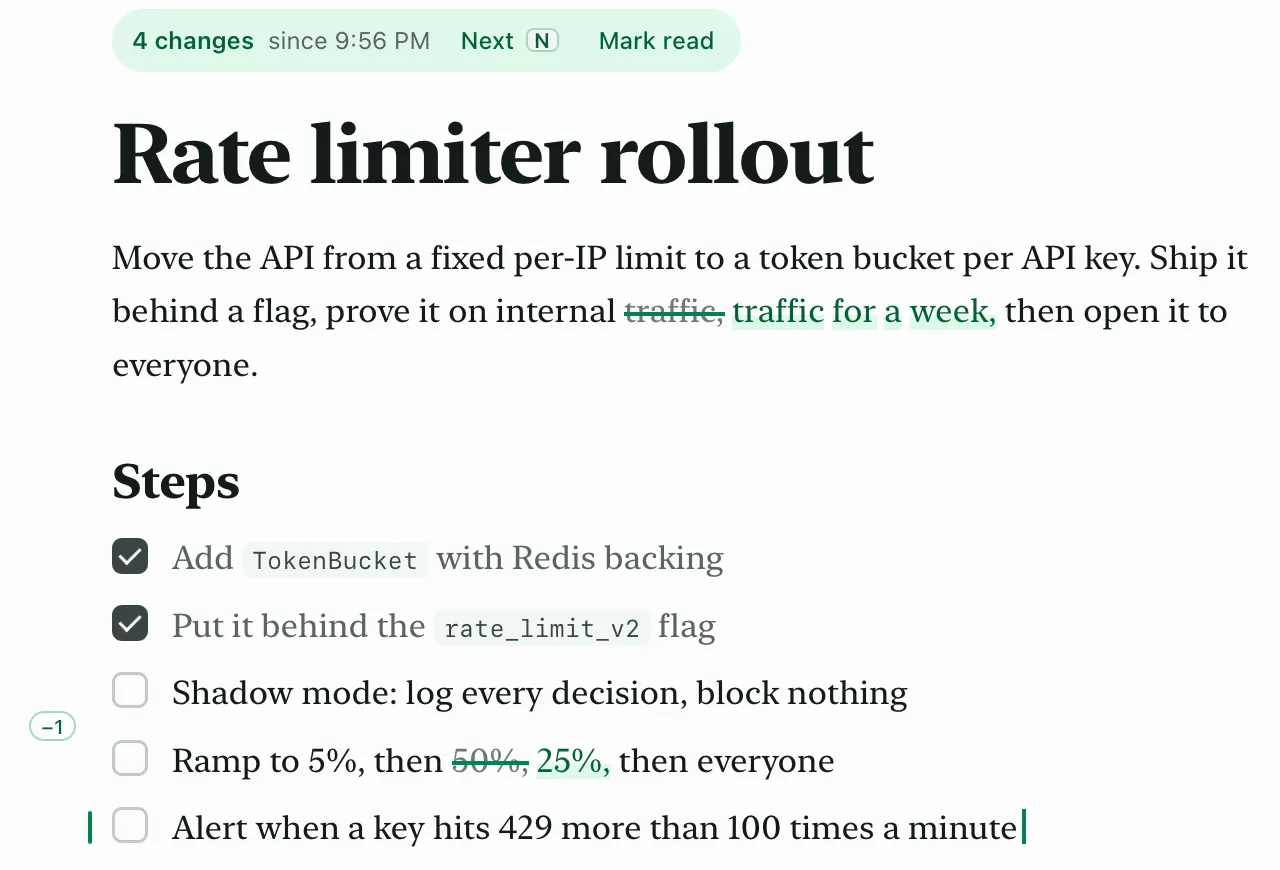
Press N to step through the changes. That’s how I check that the agent only changed what I asked before I click Build. More in how to review what an AI agent changed, without git.
Send comments back to Cursor
You can comment on any line of the plan in dotPen and send all your comments to Cursor at once. In dotPen’s Settings, under Integrations, turn on Agent bridge and copy the Cursor entry into ~/.cursor/mcp.json:
{
  "mcpServers": {
    "dotpen": { "url": "http://127.0.0.1:47319/mcp" }
  }
}
Then ask the agent to read your dotPen comments on the plan. The full flow is in how to give feedback on a Claude Code plan, and it works the same with Cursor.
Plan Mode is the best habit Cursor gives you. Save to workspace is the second-best, because a plan you can find again is worth more than one you can’t. You can see the rest of what dotPen does on the features page.
Questions
- Where does Cursor save plans?
- In your home directory by default. Click Save to workspace on a plan to move it into your project, which Cursor's blog says stores it in .cursor/plans/. Plans are Markdown files you can edit directly.
- How do I turn on Plan Mode in Cursor?
- Open the Agent panel with Command-I, then press Shift+Tab from the chat input to rotate to Plan Mode, or choose it from the mode picker.
- Can I edit a Cursor plan before it builds?
- Yes. The plan opens as a file you can read and edit, either directly or by asking in chat. When it's right, click Build. To start over, click Revert, then Confirm.
- Should I commit .cursor/plans to git?
- It's up to your team. Committed plans are a useful record of why code changed, but read them first, since they can mention internal details.