
The first thing I do on a new Mac, after the browser and the password manager, is set up dotPen. It takes me about five minutes, and after that every plan and spec my agents write just shows up.
I’ve walked a few people on our team through it, and the same three questions come up each time: which folders to pick, why Quick Look still shows raw text, and how the agent reads comments. So this is the whole setup in the order I do it, with those answers in the right places.
TLDR
Open dotPen, choose your code folder, and keep the projects it finds. Make dotPen the default app for .md files with Get Info, then Change All. In Settings, Integrations, copy the command line command and run it once. Then turn on the agent bridge and run its one-line command for Claude Code, Codex or Cursor, so your agent can read the comments you leave.
1. Choose your code folder
The first time you open dotPen, it asks you to “choose your code folder, like ~/code”. Pick the folder where your projects live.
dotPen then looks inside it for projects that have a CLAUDE.md, AGENTS.md or .cursor folder, which is how it spots the ones an agent works in. It lists them with a tick beside each. Untick anything you don’t care about and click Watch.
If it finds no agent files, it shows folders that hold a lot of Markdown instead, or offers to watch the whole folder. And if you only want to read one file today, Open a file instead skips all of this.
Nothing leaves your Mac during this step. dotPen only reads the folders you pick, and macOS asks you to pick them, so it can’t wander anywhere else.
What I pick: every repo I’ve used an agent in during the last month. You can always add more later in Settings, under Folders, with Watch another folder.
2. Look around the file list
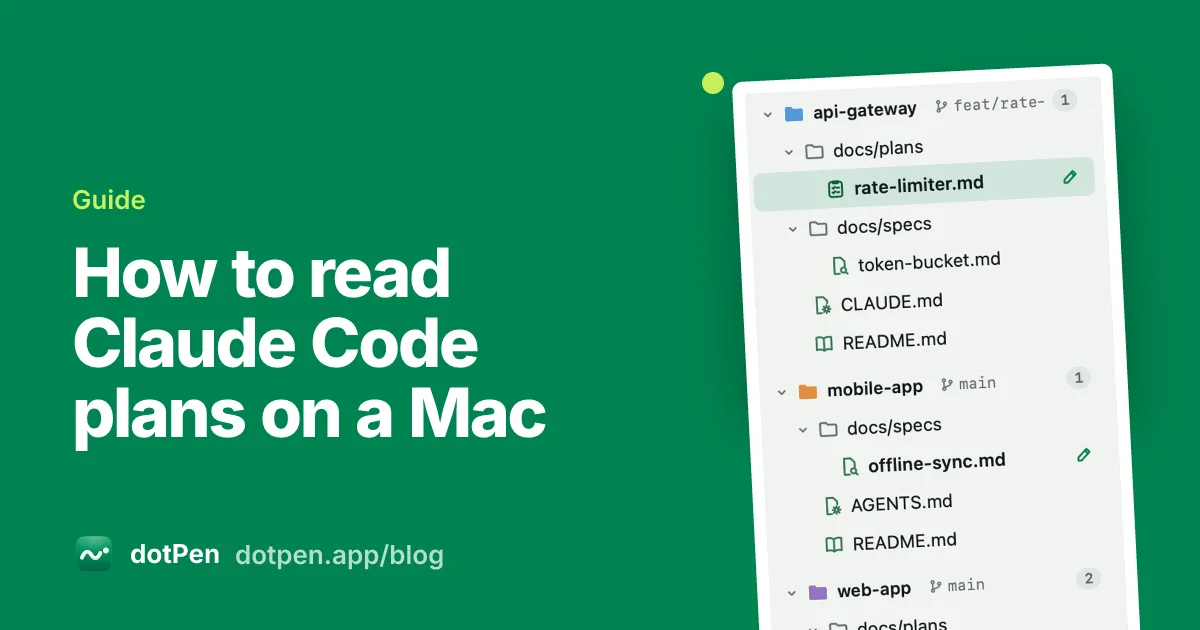
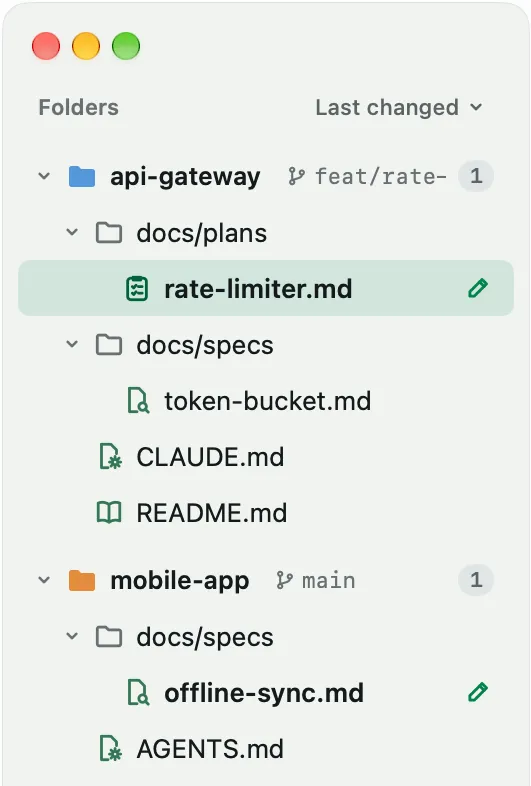
Once your folders are in, the left side shows every Markdown file in them, grouped by folder, with the repo’s current branch beside each name.
- A green dot means a file is new or unread.
- A pencil means an agent is still writing that file.
- An icon shows what the file is: a plan, a spec, a README, a changelog or an agent instruction file, guessed from its name and folder.
node_modules, build folders and anything in .gitignore are hidden so the list stays readable. If your plans live in an ignored folder, turn on Show ignored paths in Settings, under Folders.
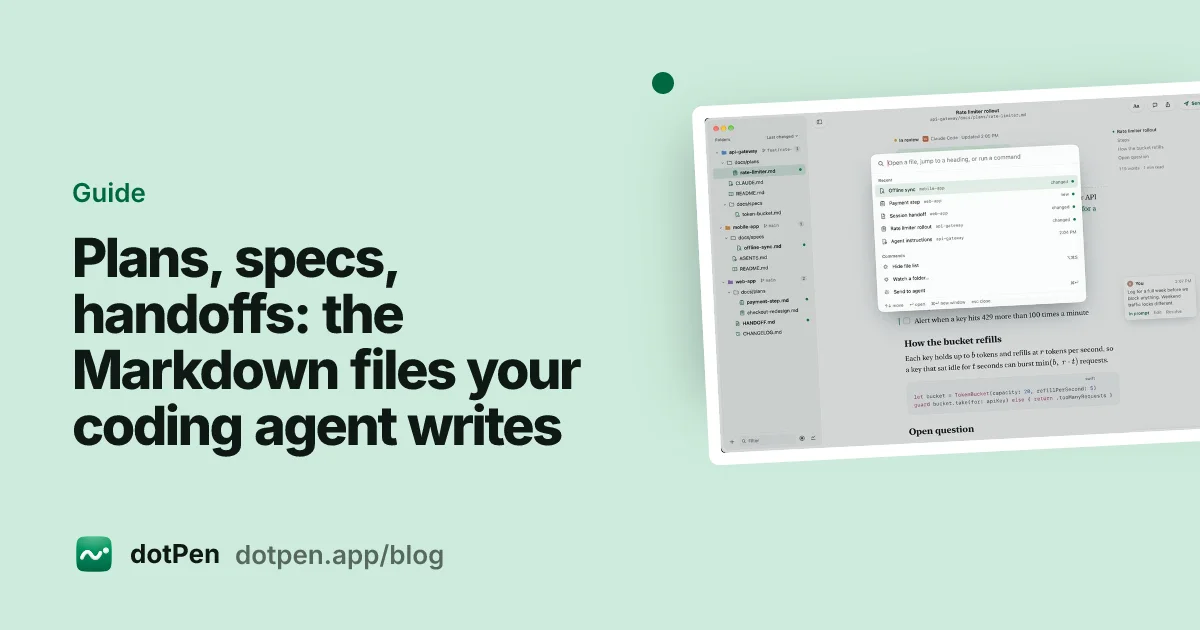
Two shortcuts worth learning on day one: J and K move between files, and Command-K opens quick open, where you can jump to any file, heading or command.
3. Make dotPen your Markdown app
Double-clicking a .md file should open it rendered. To set that once for every file:
- Select any
.mdfile in Finder. - Choose File, then Get Info.
- Under Open With, pick dotPen.
- Click Change All, then confirm.
Then check Quick Look: select a .md file and press Space. You should see the rendered page, not the raw text. It works for .mdx files and Cursor’s .mdc rule files too.
If Space still shows plain text, open dotPen once more and try again, since that’s when macOS registers the extension. If it still doesn’t work, the fixes are in how to preview Markdown in Quick Look on a Mac.
4. Add the dotpen command
If you live in Terminal, this one’s worth a minute. Open Settings, choose Integrations, and copy the command next to Command line. Run it once in Terminal. It asks for your password because it adds a small dotpen command to /usr/local/bin.
Then:
dotpen plan.md
dotpen ~/code/api
dotpen
The first opens a file. The second watches a folder. The third, on its own, watches the folder you’re in. I use the last one constantly: cd into a repo, type dotpen, done.
5. Connect your agent
This is the step that turns dotPen from a reader into a review tool. In Settings, under Integrations, turn on Agent bridge. dotPen starts a small MCP server that only listens on your own Mac.
Then copy the command for your agent and run it once. For Claude Code:
claude mcp add --transport http --scope user dotpen http://127.0.0.1:47319/mcpThe same screen has the command for Codex and Gemini CLI, and a config entry to paste for Cursor. Any agent that speaks MCP over HTTP can use the address.
Now when you leave comments in dotPen, your agent can read them, make the changes and mark them resolved. It can also ask you to review a file and wait until you’re done. I wrote about both in how to give feedback on a Claude Code plan and how to make your coding agent wait for your review.
6. Optional: let dotPen name the agent
dotPen can show which agent wrote each file, and group new files by the session that wrote them. To do that it reads Claude Code’s logs in ~/.claude/projects and Codex’s in ~/.codex/sessions.
That’s private data, so it’s off until you say otherwise. In Settings, under Integrations, turn on the agents you use. macOS asks you to allow the folder once.
7. Make it yours
A few last things I set:
- Reading options: the Aa button in the toolbar sets text size, the font (New York, SF Pro or SF Mono), line width and page color, and can wrap long code lines.
- Spotlight: turn it on in Integrations to find headings and text from your watched files in Spotlight.
- Shortcuts: dotPen adds actions to the Shortcuts app, like getting the changes since you last read a file.
- Keyboard shortcuts: press Command-Slash to see every one.
That’s the setup. The first time an agent finishes a plan, you’ll see the pencil turn into a green dot. Open it, and if you’ve read an earlier version, the changes are already marked. That’s in how to review what an AI agent changed, without git, and the rest is on the features page.
Questions
- Does dotPen need an account?
- No. There's no account, no sign-in and no tracking. Everything stays on your Mac.
- Which folders should I watch?
- The folders where your coding agents work. On first launch, dotPen looks inside the code folder you choose and suggests the projects that have CLAUDE.md, AGENTS.md or .cursor files. You can add more later in Settings, under Folders.
- Does dotPen read my Claude Code sessions?
- Only if you allow it. In Settings, under Integrations, you can let dotPen read ~/.claude/projects and ~/.codex/sessions so it can show which agent wrote each file. It's off until you turn it on.
- What macOS version does dotPen need?
- macOS 15 or later.